How to Connect a Laptop to a Projector Wirelessly—Without Downloading Anything

You’re about to present, and the last thing you need is a technical meltdown. No time to hunt down adapters, install drivers, or wait for IT to rescue you. The good news? Your laptop already has what you need to connect wirelessly—no downloads required.

What Wireless Presentation Actually Means

Wireless presentation lets you project your screen onto a display without any cables getting in the way. Instead of fumbling with HDMI cords or dongles, you’re using technology that’s already built into your device.

The main players here are Miracast (for Windows), AirPlay (for Mac), and Google Cast (for Chromebooks). These aren’t apps you download—they’re native features baked right into your operating system. That means you can walk into almost any room and connect in seconds.

Connecting from a Windows Laptop

Most Windows 10 and 11 laptops support Miracast out of the box. Here’s how to use it:

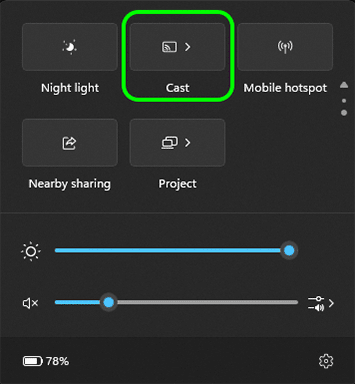
First, make sure the projector or display supports Miracast, or has a Miracast adapter plugged in. Then press Windows + K on your keyboard, or open the Action Center and click Connect.

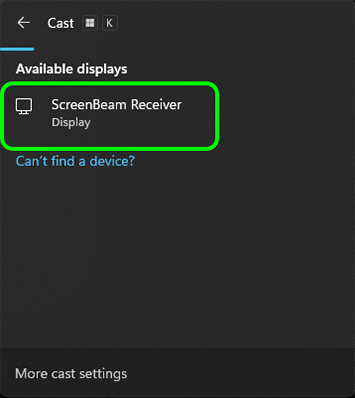
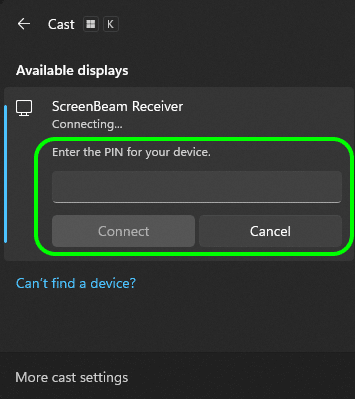
You’ll see a list of available displays pop up. Select the one you want to connect to. If it asks for a PIN, just enter what’s showing on the screen. Your laptop screen will mirror instantly—no cables, no apps, no hassle.

Connecting from a MacBook

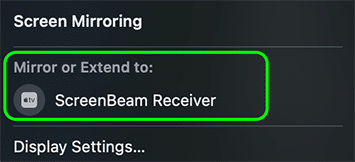
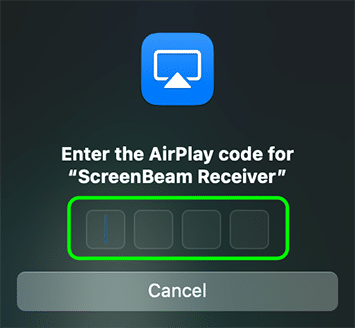
AirPlay makes wireless presenting almost effortless on a Mac. The catch? Both your MacBook and the display need to be on the same Wi-Fi network, or the display needs to support AirPlay 2.

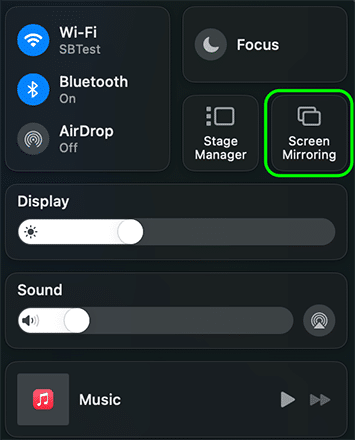
Look for the AirPlay icon in your menu bar at the top right—it looks like a screen with a little arrow. Click it, then choose the display you want to connect to from the list.

You’ll get the option to mirror your screen or use the display as a second monitor. Pick what works for your presentation, and you’re

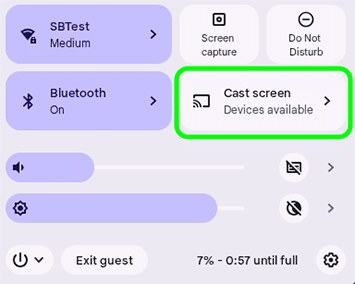
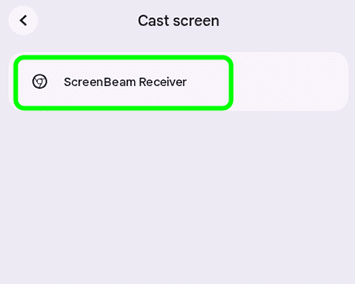
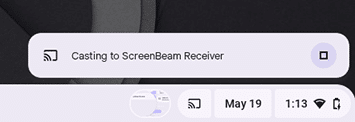
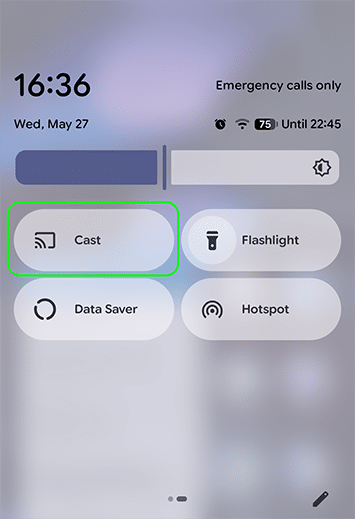
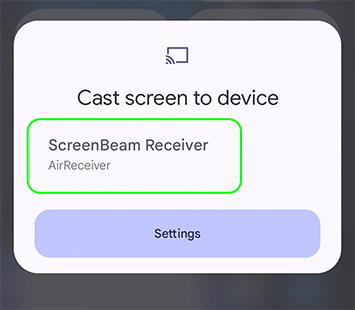
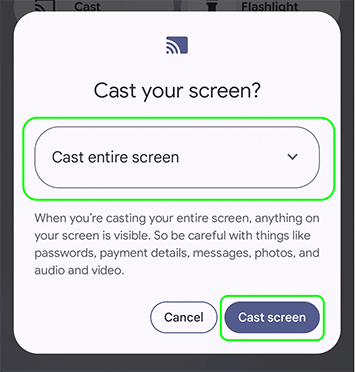
Connecting from a Chromebook

Most Windows 10 and 11 laptops support Miracast out of the box. Here’s how to use it:

First, make sure the projector or display supports Miracast, or has a Miracast adapter plugged in. Then press Windows + K on your keyboard, or open the Action Center and click Connect.

You’ll see a list of available displays pop up. Select the one you want to connect to. If it asks for a PIN, just enter what’s showing on the screen. Your laptop screen will mirror instantly—no cables, no apps, no hassle.

What If the Projector Isn't "Smart"?

Not every projector supports wireless connections natively. But that doesn’t mean you’re stuck with cables.

You can add wireless capability with a small HDMI adapter. Options include the Microsoft Wireless Display Adapter for Miracast, an Apple TV for AirPlay, or a Chromecast for Google Cast. These plug into the projector’s HDMI port and are usually powered by USB.

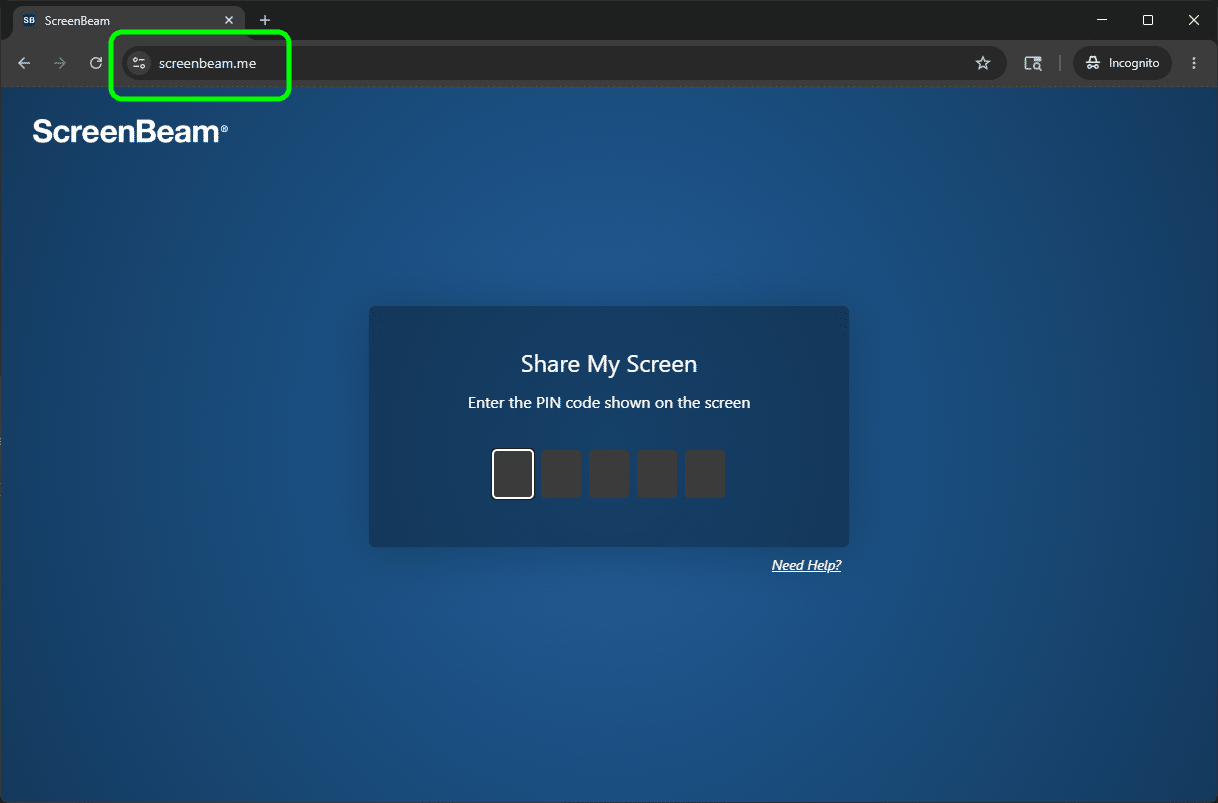
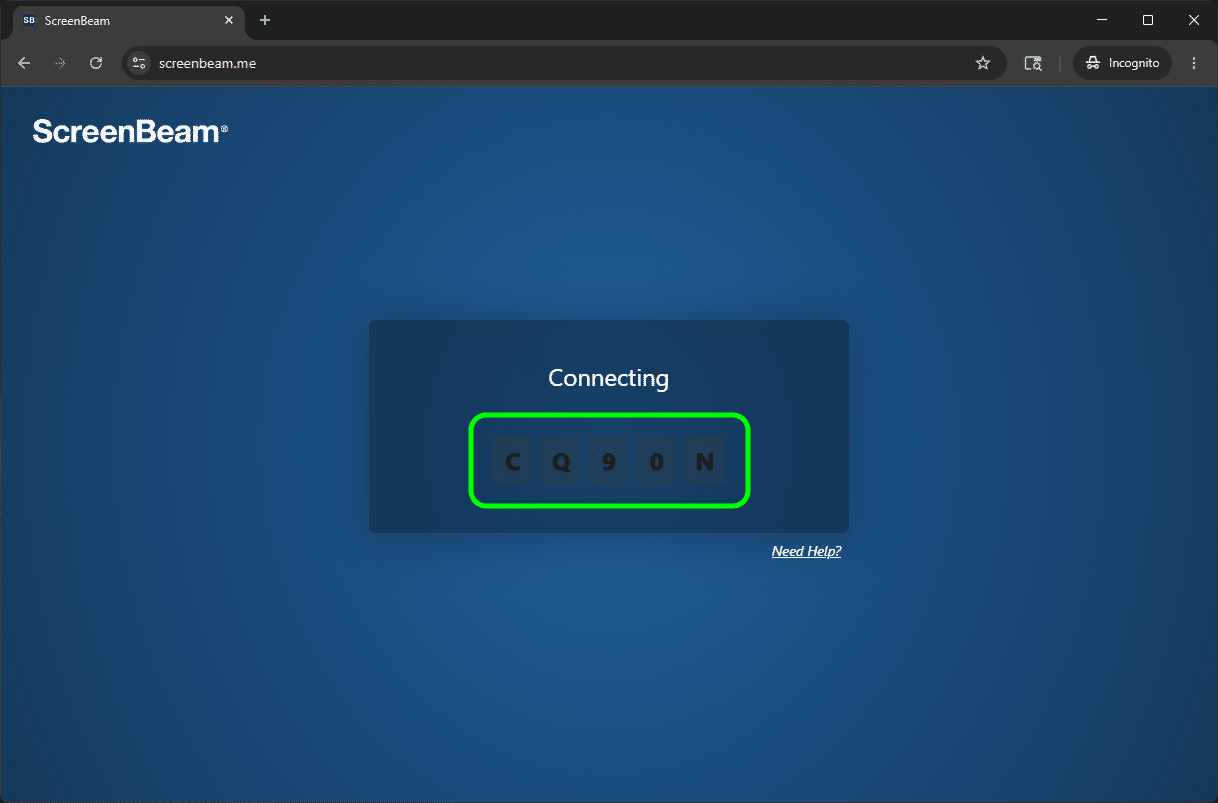
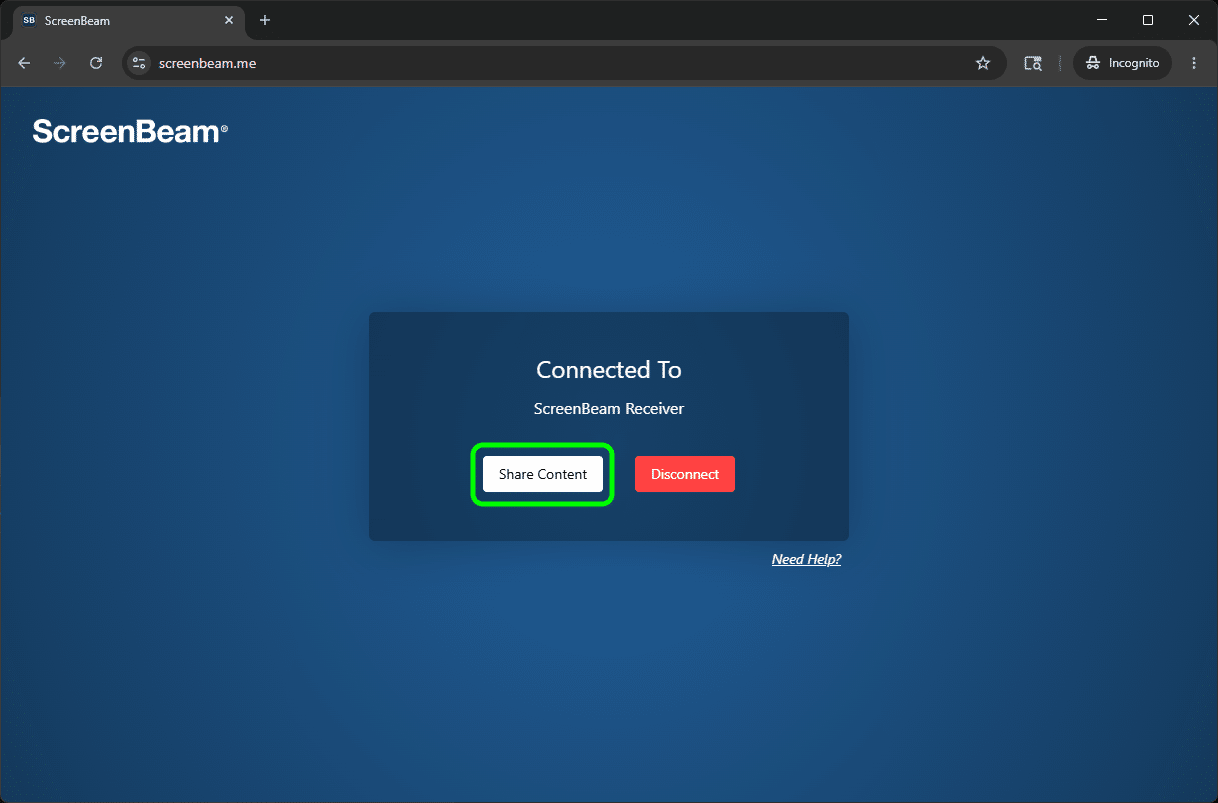
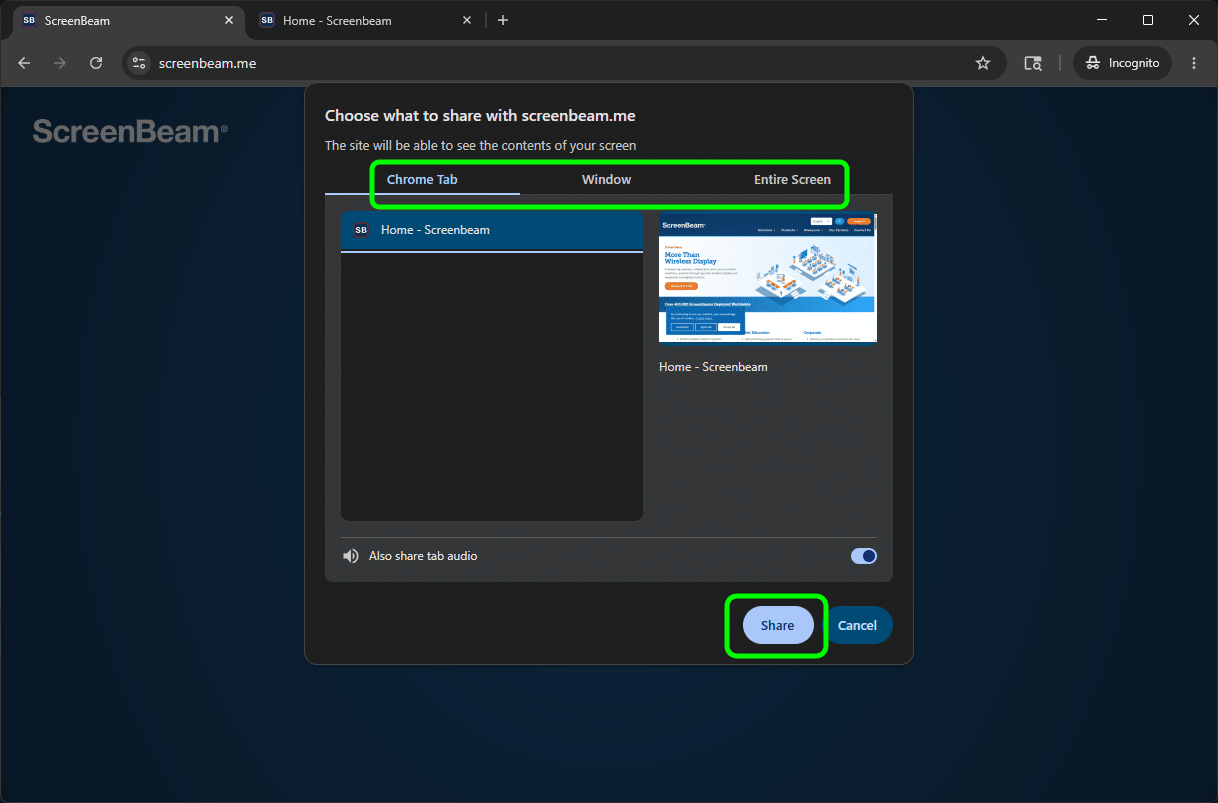
For setups that need to work across multiple platforms—Windows, Mac, and mobile devices—ScreenBeam receivers offer a more versatile solution. They support Miracast, AirPlay, and Google Cast in one device, so anyone in the room can connect without worrying about compatibility.

Quick Troubleshooting When Things Don't Connect

The display doesn’t show up: Double-check that both devices are on the same Wi-Fi network (for AirPlay and Cast). For Miracast, make sure Wi-Fi is enabled even if you’re not connected to a network. Also confirm the projector is set to the correct HDMI input.

You’re connected but there’s no sound: Go into your laptop’s sound settings and change the output device to the projector or display.

The connection feels sluggish: Move closer to the receiver if you’re using Miracast. For AirPlay and Cast, try switching to a 5 GHz Wi-Fi network if one’s available—it’s faster and more stable.

You’re in a hotel or guest network: These networks often block device-to-device communication. Miracast works peer-to-peer, so it can bypass this issue. AirPlay also has a peer-to-peer mode that kicks in when needed.

Wrapping It Up: Present Without the Stress

Wireless presentation isn’t complicated once you know which tool your laptop uses. Identify your built-in protocol—Miracast, AirPlay, or Google Cast—and match it to a compatible receiver. In most cases, you’ll be up and running in under 30 seconds.

And when you need a solution that just works across every device in the room, ScreenBeam’s wireless display solutions are built specifically for that kind of flexibility. Whether you’re presenting in a business environment or an educational setting, the right setup means less friction and more focus on what you’re actually there to share.

Keep a backup cable handy if you’re extra cautious. But honestly? Once you’ve presented wirelessly, you won’t want to go back.

Ready to try it for yourself?