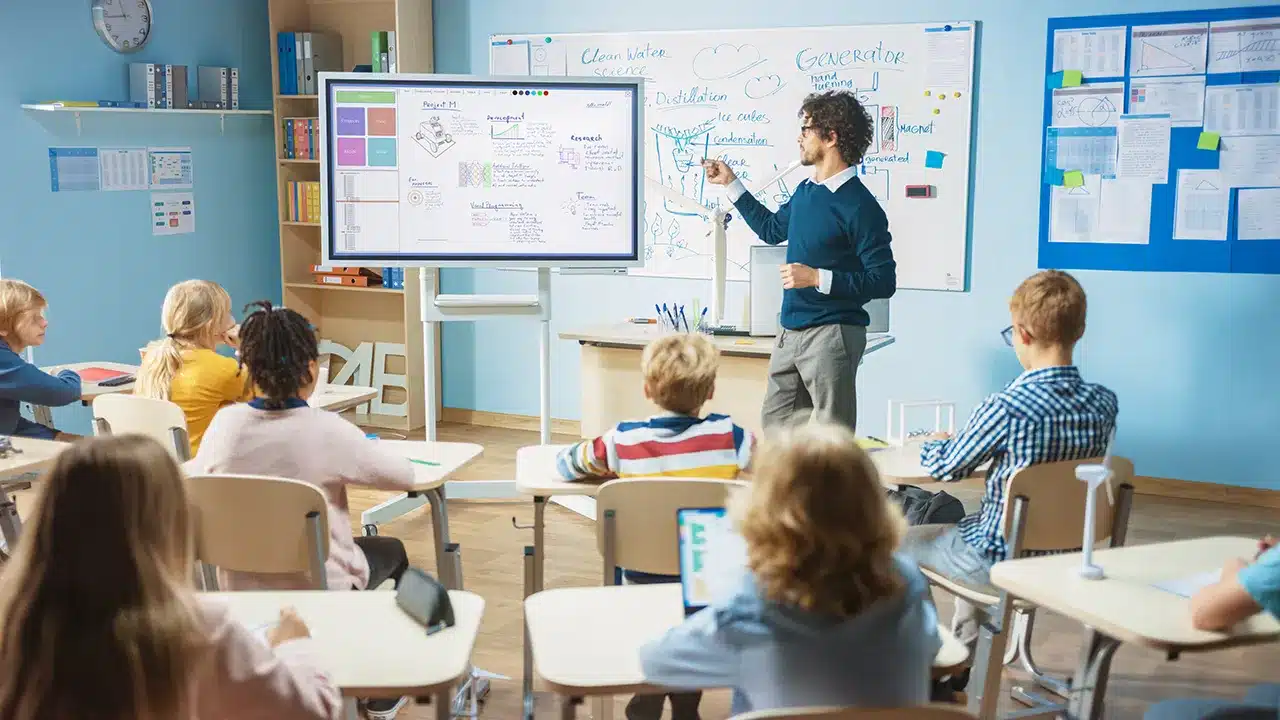
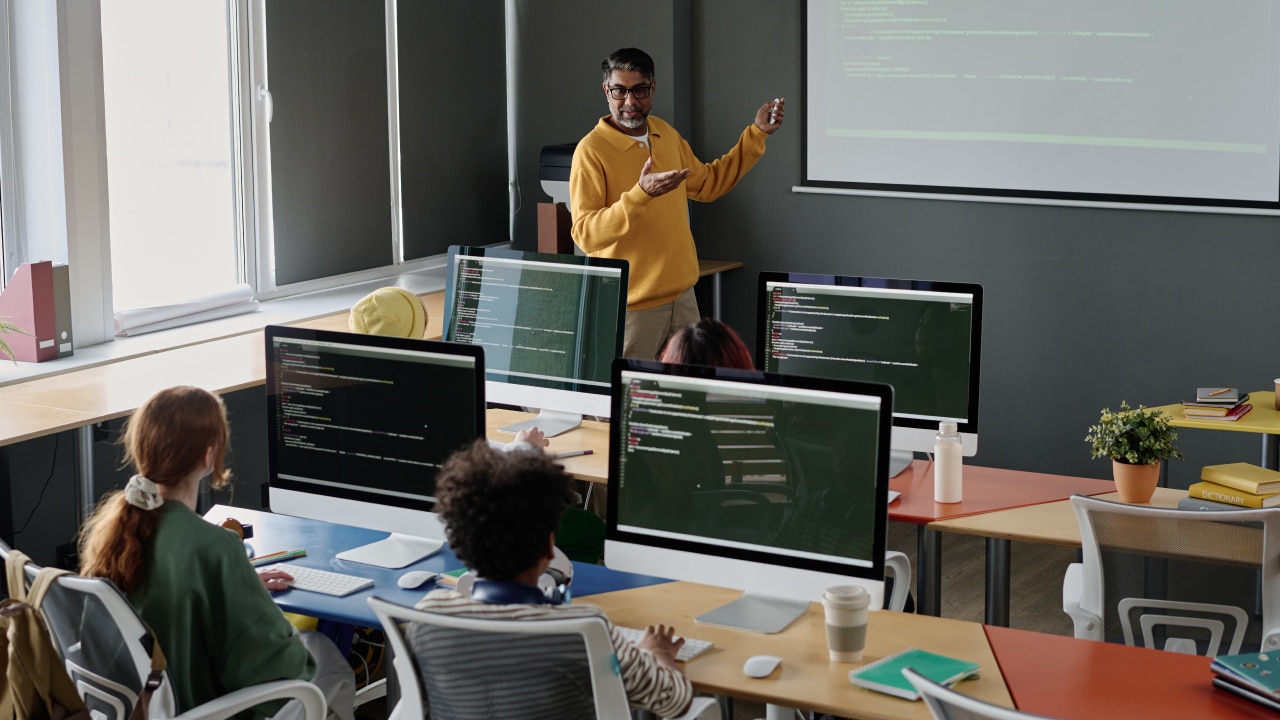
Instructional-based Classroom Management
Orchestrate is an instructional orchestration layer that extends ScreenBeam wireless display into a complete teaching experience—giving teachers real-time visibility, guided sharing, and collaboration at the classroom display.
It brings visibility, teacher-led control, moderated student sharing, and lesson-based web controls into one connected workflow, designed for fast adoption in 1:1 learning environments.
Key Capabilities
- Automated student rostering and integrations (ClassLink, OneRoster)
- Teacher-led, moderated student screen sharing
- Real-time student screen visibility
- Push URLs directly to student devices
- Optional in-class chat and screen snapshot sharing
- Lesson-based web filtering (block all / allow / block lists)
- Cross-OS support for Windows, macOS, and ChromeOS
Why Orchestrate Exists
The moment classrooms changed
In 1:1 classrooms, teaching is no longer just about presenting content. Teachers need to keep students focused, bring the right student work forward at the right moment, and turn participation into learning—without slowing the lesson or managing multiple tools.
Wireless display solved visibility.
Orchestrate solves instruction.
Where Traditional Classroom Tools Fall Short
Most classroom management tools focus on device oversight:
- Monitoring student screens
- Locking input or blanking displays
- Applying general web policies
These features are useful, but they don’t address the most critical teaching moment: the front of the room, where student work becomes shared learning.
Teachers are left switching between systems, breaking instructional flow.
The Orchestrate Difference
Orchestrate is built directly on top of the wireless display experience.
Instead of splitting instruction across disconnected tools, teachers move seamlessly from visibility → control → sharing → collaboration, all anchored to the classroom display. Instruction stays in flow, and the display becomes an active teaching surface—not a passive endpoint.
What Orchestrate Enables
See the room in real time
Live visibility into student devices helps teachers identify off-task behavior early and support students faster.
Guide attention intentionally
Teachers preview, moderate, and control when student work appears on the main display, ensuring sharing is purposeful and aligned to the lesson.
Turn student work into instruction
Moderated student presentation transforms “show my screen” into structured discussion, exemplars, and quick checks for understanding.
Keep browsing aligned to the lesson
Lesson-based web controls make it easy to:
- Block all browsing
- Allow specific instructional sites
- Block distractions using flexible rules
Outcomes That Matter
For Teachers:
More teaching time, faster transitions, and structured student participation.
For IT Teams:
Fewer classroom tool silos, simpler deployment, higher adoption, and
For District Leaders:
A consistent, scalable instructional experience across classrooms and schools.
- For Teachers:
More teaching time, faster transitions, and structured student participation. - For IT Teams:
Fewer classroom tool silos, simpler deployment, higher adoption, and reduced support overhead.
How Orchestrate Is Designed Differently
| Capability | Orchestrate by ScreenBeam | Other Classroom Management Tools |
|---|---|---|
| Relationship to the display | Built directly into wireless display | Typically separate from the display |
| Instructional focus | Front-of-room, teacher-led | Primarily device-centric |
| Real-time student visibility | Live view of student devices | Commonly available |
| Student sharing | Guided, teacher-moderated | Often ad hoc |
| Turning student work into instruction | Structured discussion and exemplars | Not a primary design focus |
| Web controls during lessons | Lesson-based teacher controls | Commonly policy-based |
| Push URLs to students | Built into instructional flow | Supported in some tools |
| Screen snapshots to students | Integrated into teaching workflow | Less commonly integrated |
| Chat / in-class messaging | Optional, instruction-aligned | Implementation differs by tool |
| Automated rostering | Native integrations (ClassLink, OneRoster) | Commonly supported |
| Cross-OS support | Windows, macOS, ChromeOS | Often OS-dependent |
| Workflow continuity | One connected teaching flow | Multiple disconnected tools |

Key takeaway: Most tools manage devices. Orchestrate manages instruction—at the display.
Orchestrate is part of ScreenBeam’s platform approach. Wireless display is the foundation—Orchestrate adds the instructional layer that brings visibility, control, and collaboration together in one experience.
If you’re running consistent, high-engagement instruction in a 1:1 environment, this is the layer that makes the room work.