
How To Connect a Chromebook to a Projector Without HDMI
The bell rings, and twenty-five students settle into their seats. You open your Chromebook to start the lesson and reach for the HDMI cable. It isn’t there.
Maybe the previous teacher took the dongle by mistake. Maybe the pins on the connector are bent from years of rough handling. Or perhaps your new Chromebook only has USB-C ports and the room is equipped with legacy VGA cabling.
The Hardware Bottleneck
Instead of teaching, you are troubleshooting. This scenario plays out in classrooms every day. The reliance on physical HDMI or VGA cables creates a bottleneck that wastes valuable instructional time.
Even when the cables work they tether you to the front of the room. You become stuck behind a desk or podium to ensure the connection holds. This physical restriction limits your ability to manage the classroom and connect with students who need proximity support.
Breaking free from cables is not just about convenience. It is about reclaiming the classroom environment. Schools need methods to connect devices that are reliable and don’t care about the specific ports on a teacher’s laptop. The focus should be on the lesson plan rather than the hardware logistics.
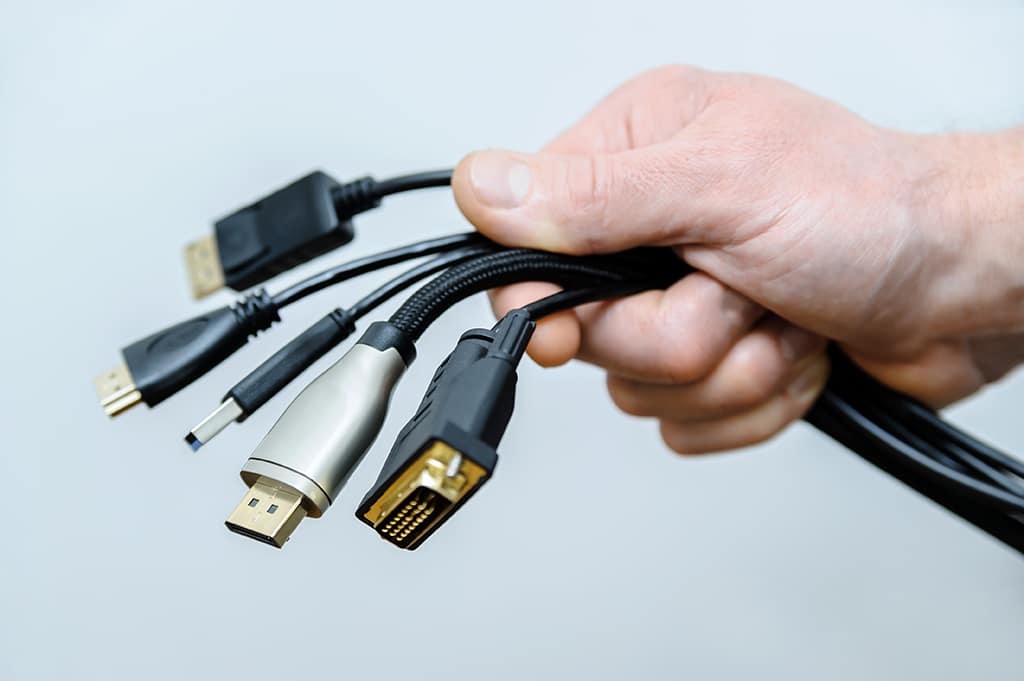
Eliminate Cable Clutter
Stop hunting for dongles and start teaching immediately with wireless display.

Talk to an Expert
Book a demo to see how we tailor wireless display to your district’s reality.
Eliminate the Cable, Not the Projector
The most effective way to connect a Chromebook to a projector without HDMI is to bypass the physical connection entirely using wireless display technology.
ScreenBeam solves the compatibility gap by acting as a universal bridge between modern devices and room displays. The ScreenBeam receiver connects to the projector’s video input. The teacher connects to the ScreenBeam wirelessly.
Native Connection Support
This approach works because ScreenBeam leverages the native Google Cast protocol already built into every Chromebook. You do not need to download a proprietary app or install software that slows down the device.
You simply open the settings menu on the Chromebook and select the room display. The connection is instant. This app-free philosophy eliminates a major friction point for IT administrators who would otherwise have to manage software updates across thousands of student and teacher devices.
For classrooms with older projectors that lack HDMI ports, ScreenBeam offers a lifeline. The receiver can connect to these legacy displays using standard adapters while still providing a modern digital signal from the Chromebook. The teacher gets the benefit of a high-definition digital workspace without the school needing to rip and replace expensive ceiling-mounted hardware.
A Standard for Seamless Integration
Deploying this solution provides a consistent experience across the entire district. IT teams can install a ScreenBeam 1000 EDU Gen 2 in every classroom to create a uniform standard.
This device is engineered specifically for the high-density Wi-Fi environments found in schools. It handles the heavy lifting of video traffic so the school network stays fast and reliable.
Beyond Basic Mirroring
Teachers gain access to tools that go beyond simple screen mirroring. With the ScreenBeam 1000 EDU, teachers can use Classroom Commander or Orchestrate software to moderate student devices. You can preview student screens and push a specific student’s work to the main projector for the class to see.
This capability turns the projector into a tool for peer review and collaboration rather than just a static presentation screen.
The setup process allows for flexibility. ScreenBeam supports Miracast for Windows and AirPlay for Apple devices alongside Google Cast. This ensures that a guest speaker or a substitute teacher with a different type of laptop can still connect without hunting for a specific converter. The system meets the user where they are.
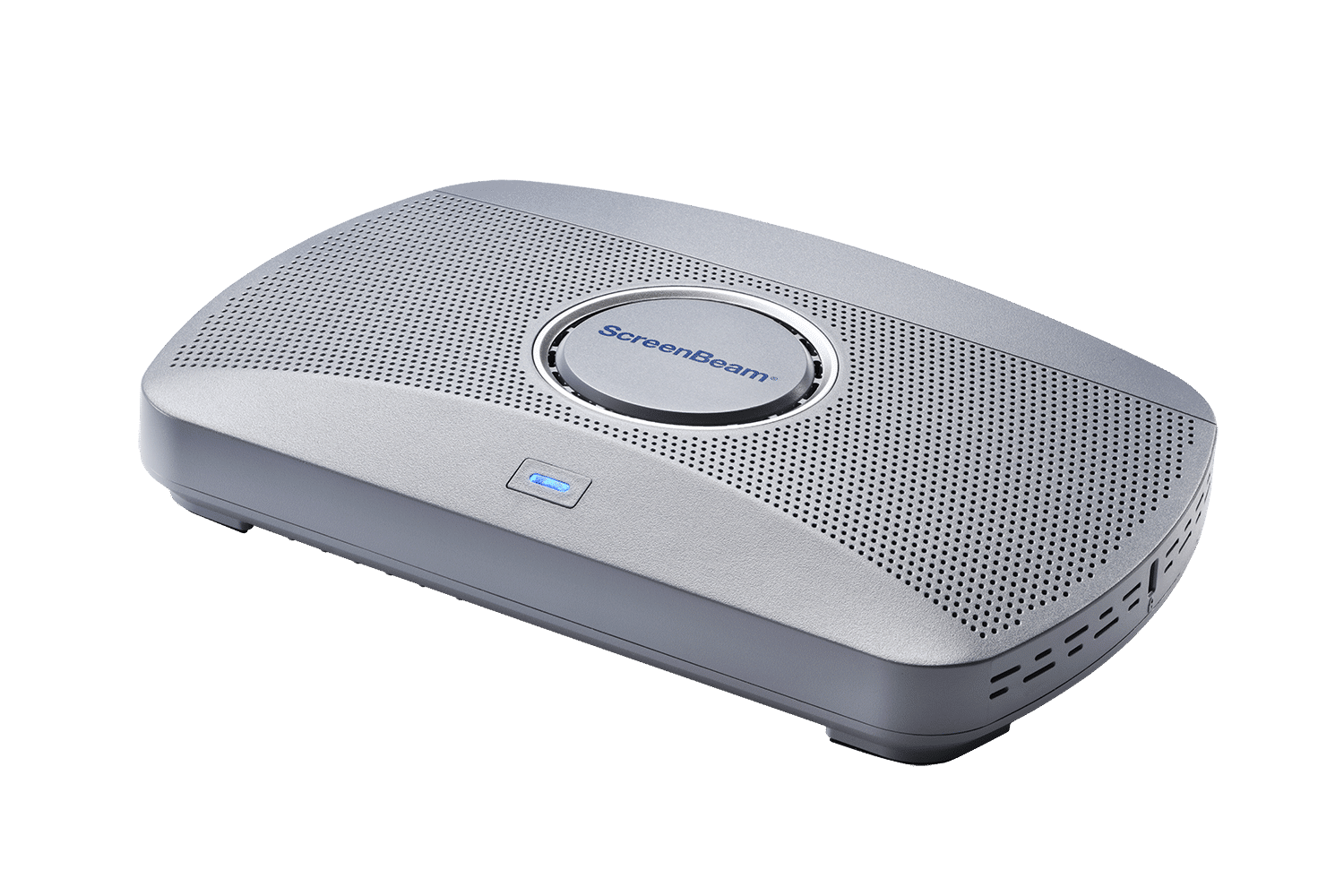
Enhance Classroom Flow
Take control of the room with orchestration tools designed for modern learning.
Untethered Teaching and Engaged Learning
The shift to wireless projection changes the dynamic of the room. You are no longer anchored to the wall. You can walk to the back of the class to check on a group project while wirelessly casting instructions to the board. This mobility improves classroom management and keeps students on task.
Student engagement rises when sharing work becomes instantaneous. A student solves a math problem on their Chromebook and you display it immediately for the class to discuss.
The technology fades into the background. The friction of technical difficulties disappears. You get to focus on what matters most which is driving student outcomes and fostering an active learning environment.
Modernize Your School
Request a trial in your own classrooms and experience the difference yourself.