

ScreenBeam Instructional Tools Bundle
Instructional Tools are designed to meet the needs of Primary/K-12 educators and students in the classroom. We focus on features that foster collaboration and engagement to enhance the classroom experience.
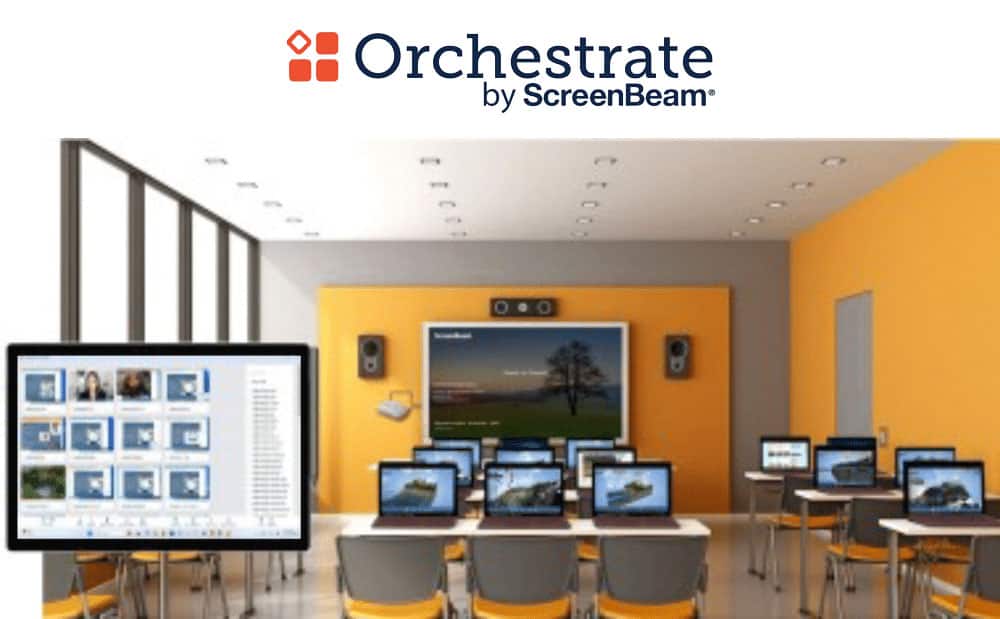
Orchestrate by ScreenBeam is a fully equipped classroom orchestration and management tool that helps educators instruct better in a 1:1 environment.
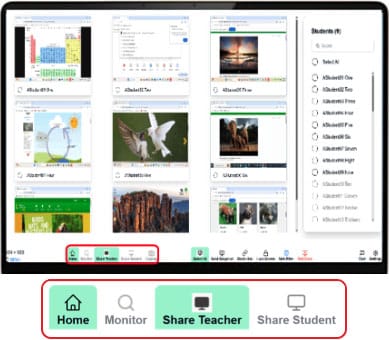
Both teachers and students can easily share content to the in-room display.
Allow teacher to see what students are working on in real time.
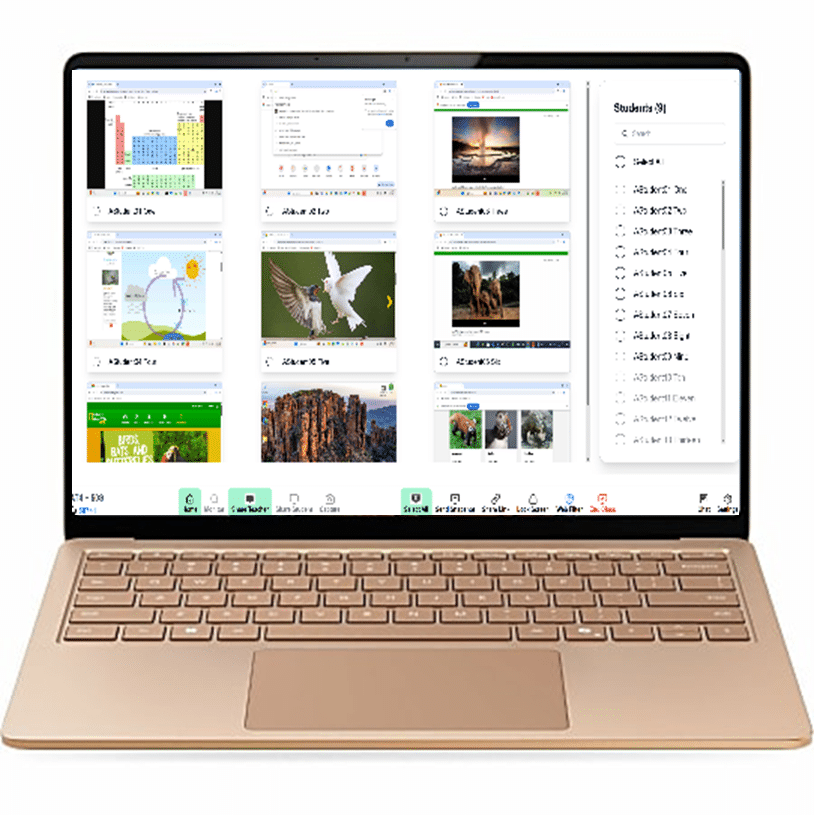
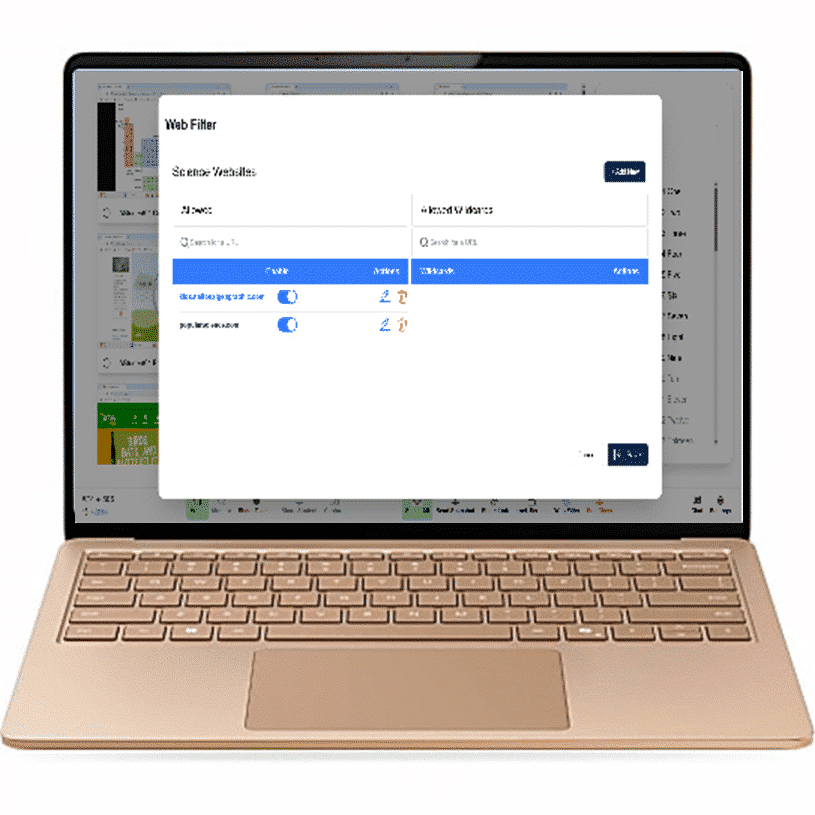
Allow teacher to restrict or allow specific websites during class to keep students focused.
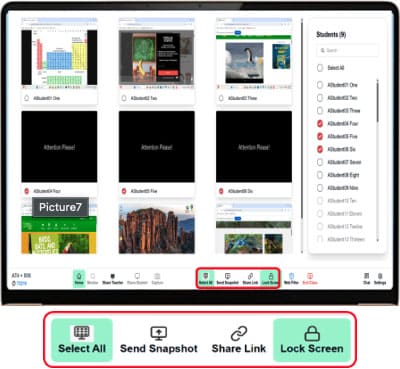
Quickly focus student attention away from screens when is use.
Orchestrate by ScreenBeam
- Fully moderated screen sharing for teachers and students
- Real-time visibility of student devices
- Teacher controlled web filters
- Push URLs to student devices
- Auto-rostering connects student devices automatically
- Integration with ClassLink and One Roster
- Optional chat feature allows educators to collaborate with students
- Share snapshot – push teacher content (screenshot, camera view, etc) to student devices.
Moderate Screen Sharing
- Teacher is always in control of screen casting experience in classroom
- Simple tools to share student screen to front of room display
- Easy to switch between Teacher and Student screensharing
- Wireless Ink/Annotation support on casted screen with Windows devices
Live Preview of Student Screens
- See up to 50 student screens in thumbnail view
- Zoom in on a single student screen to get a better view into what they are doing
- Grab a screenshot of student screen for formative assessment
Teacher Web Filtering Tools
- Only active during class
- Create block lists for distracting web pages
- Create allow lists to tailor a lesson plan
Lock Keyboards/Blank Screens
- Screens are locked with custom message
- Keyboards and mice are locked
- Lock all or individual student screens
General Requirements
- ScreenBeam 1000EDU-Series receiver
- ScreenBeam CMS Enterprise – 4.4.15.0 (or later)
- Orchestrate Windows Assistant – 3.2.0 (or later)
- Orchestrate Roster Importer – 2.0.1 (or later)
- Install with MDM from ScreenBeam upgrade server
- Orchestrate extension – 3.2.0 (or later)
System Requirements
- Windows 11/10 Pro/Edu/Ent (64-bit) or ChromeOS 81.0.4044.103 (or later)
- Processor
- Teacher: 10th Gen Intel Core i5 or AMD equivalent (or better)
- Student: 10th Gen Intel Core i3 or AMD equivalent (or better)
- 8GB Memory (or more)
- 64GB available Hard Disk Space (or more)
- Wi-Fi: Intel WiFi6 AX series (or equivalent)
Note: MacOS environment is currently not supported.
Required Network Configurations
- TCP port 49542 – Communications between Orchestrate Windows assistant Orchestrate extension (intra-device rule on Windows PCs only.)
- TCP port 8080 – Connection between Orchestrate extension and ScreenBeam receiver.
- Allow cloud.screenbeam.com in content filter and whitelist from SSL decryption.
| Download Type | Version | Notes | Download |
|---|---|---|---|
| Starting Guide | 3.5 |
… |
Download |
| Deployment Guide | 3.5 |
AD |
Download |
| Deployment Guide | 3.5 |
Azure AD |
Download |
| Deployment Guide | 3.5 |
Google GSuite |
Download |
| User Manual | 3.5 |
… |
Download |
Please read the Starting Guide first.
Current Release
Version: 3.5.1
- Extension: 3.5.1
- Extension installation URL: https://cdn.screenbeam.com/assets/orchestrate/manifestv3/upgrade_ext_v3.5.1.xml
- Download Windows Assistant App
- 1000 EDU Gen 2 Firmware: 11.2.20.0
Important Note
- If upgrading from 3.2.0 then completely uninstall the software before updating.
- This release has been upgraded to use Google Manifest v3 APIs.
- Google Chrome v139 has been released on Aug 5, 2025, and does not support Manifest v2 extensions. It is mandatory to use Orchestrate v3 if Chrome has been updated to v139 or later.
- A bug was introduced into the Chromium browser v144.0.x.y which prevents Orchestrate from functioning. It is recommended to update your browser to v144.0.7559.110 or later which has patched the bug. If you must use the impacted browser version, then it is necessary to update Orchestrate to 3.5.0
Supported Deployment Configurations
- Teacher/Student: Windows AD/AAD/Gsuite, Chrome Browser
- Teacher/Student: Windows AD/AAD, Edge Browser
- Teacher: Windows Gsuite, Chrome Browser + Student: ChromeOS
Bug Fixes
- General improvements to Web Filtering
- Fix to address issue in Chromium 144.0.x.y which prevented Orchestrate from functioning
- Corrections to Japanese translations
- Improved syncing of UI when a device resumes from sleep
Introduction
A trial version of Orchestrate by ScreenBeam is available for evaluation purposes. The evaluation mode supports a setup consisting of 1 Teacher and up to 3 Student devices and including all features.
Start with the Eval Setup Guide.
Downloads for Teacher & Student systems
Version 3.5.1
- Windows environment/devices
- Download Orchestrate Windows Assistant App
- ChromeOS environment/devices
- Download Orchestrate Manifest V3 extensions
Note: If the environment consists of Windows Teacher and ChromeOS Student devices, then both Windows Assistant App and browser’s extension are required.
Documentation
Compatible Hardware
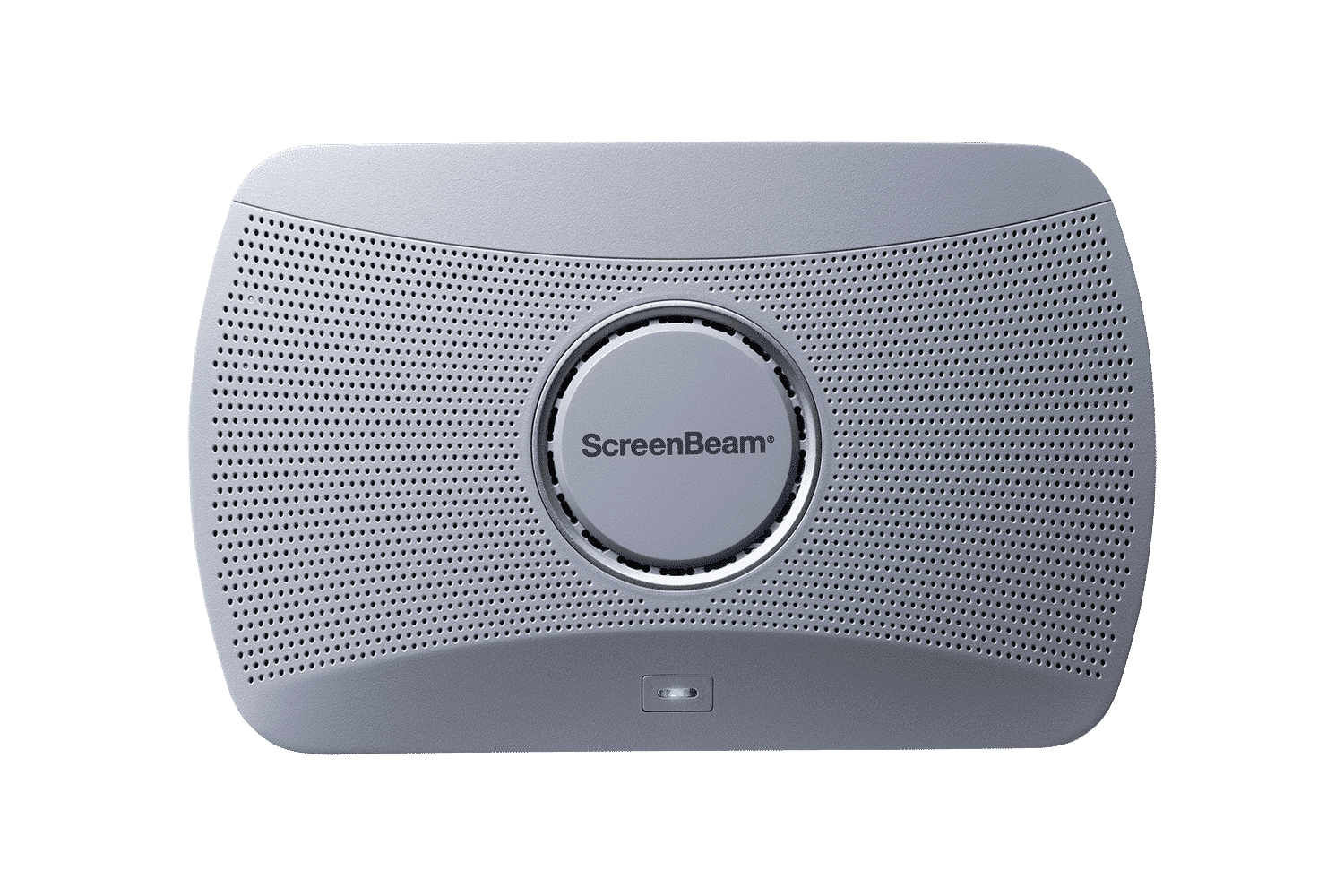
ScreenBeam 1000 EDU Gen 2
A complete smart wireless presentation and engagement solution built for modern classrooms. The 1000 EDU Gen 2 enables screen sharing from any device, includes a built-in whiteboard for collaboration, digital signage, instant alerts, and more … all in a single solution.
ideal for K-12
Case Studies
Making a Difference
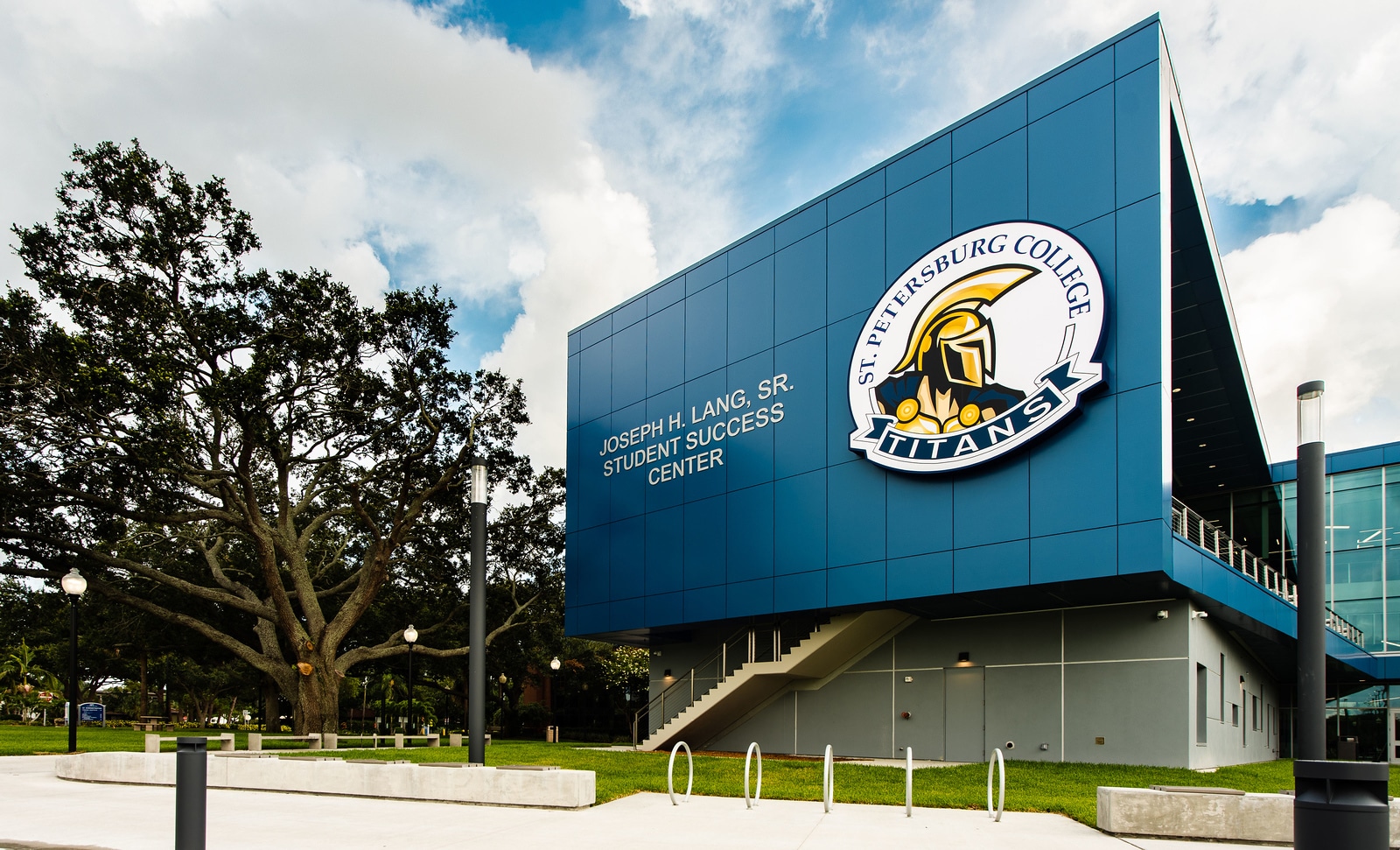
At St. Petersburg College, ScreenBeam technology has become a cornerstone of the school’s commitment to innovation. Helping create seamless, connected learning environments across its campuses.

Fostering Success
Flint Cultural Center Academy replaced existing consumer-grade wireless display with ScreenBeam in their classrooms and meeting spaces because of its ability to address a wide array of use cases and meet user experience, remote management and security considerations.

Building a Hybrid Future
Responding to the growing demand for hybrid learning, Palm Beach State College deployed the ScreenBeam 1100P to streamline wireless interactions and better serve the diverse learning needs of their extensive commuter population.
The Need for Collaboration
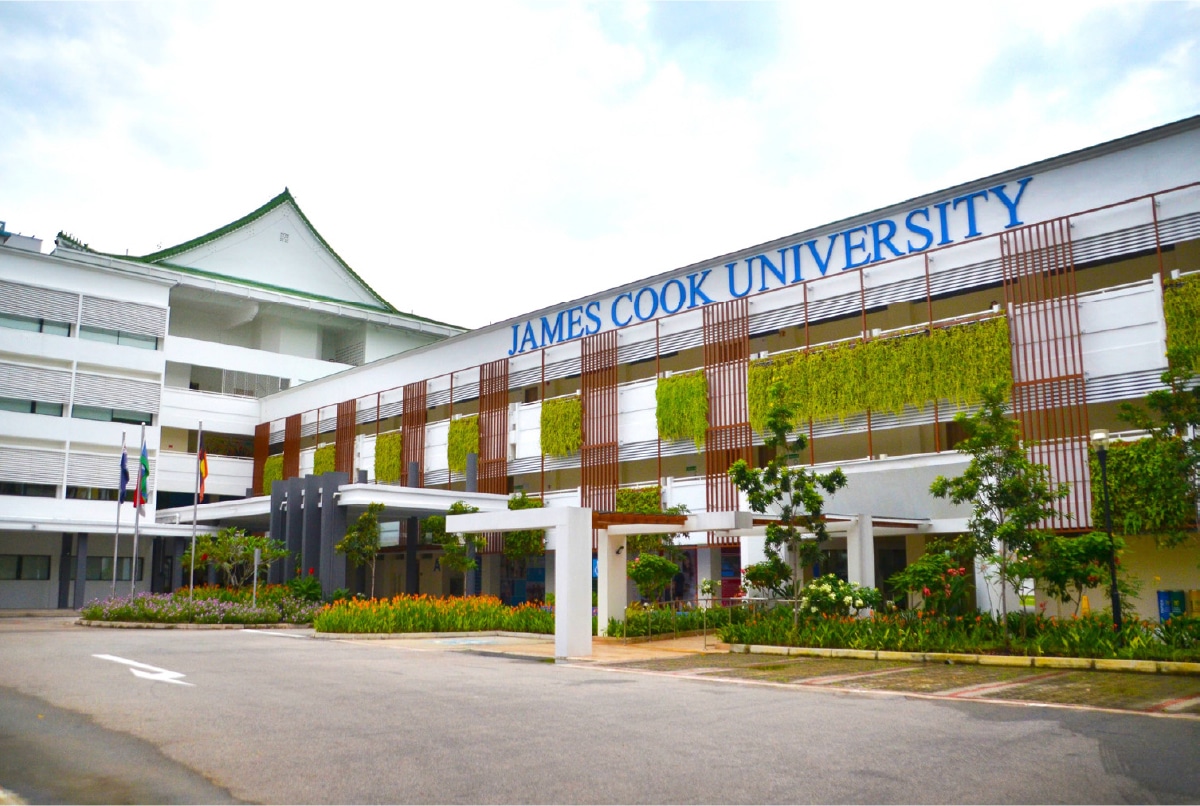
James Cook University moves to hassle-free presentations with ScreenBeam 1100 Plus transforming its classrooms into secure hybrid learning spaces. The result has revolutionized the way staff works elevating team productivity to new levels and positioning the University as an innovation leader in their regions.
Untethered Teaching
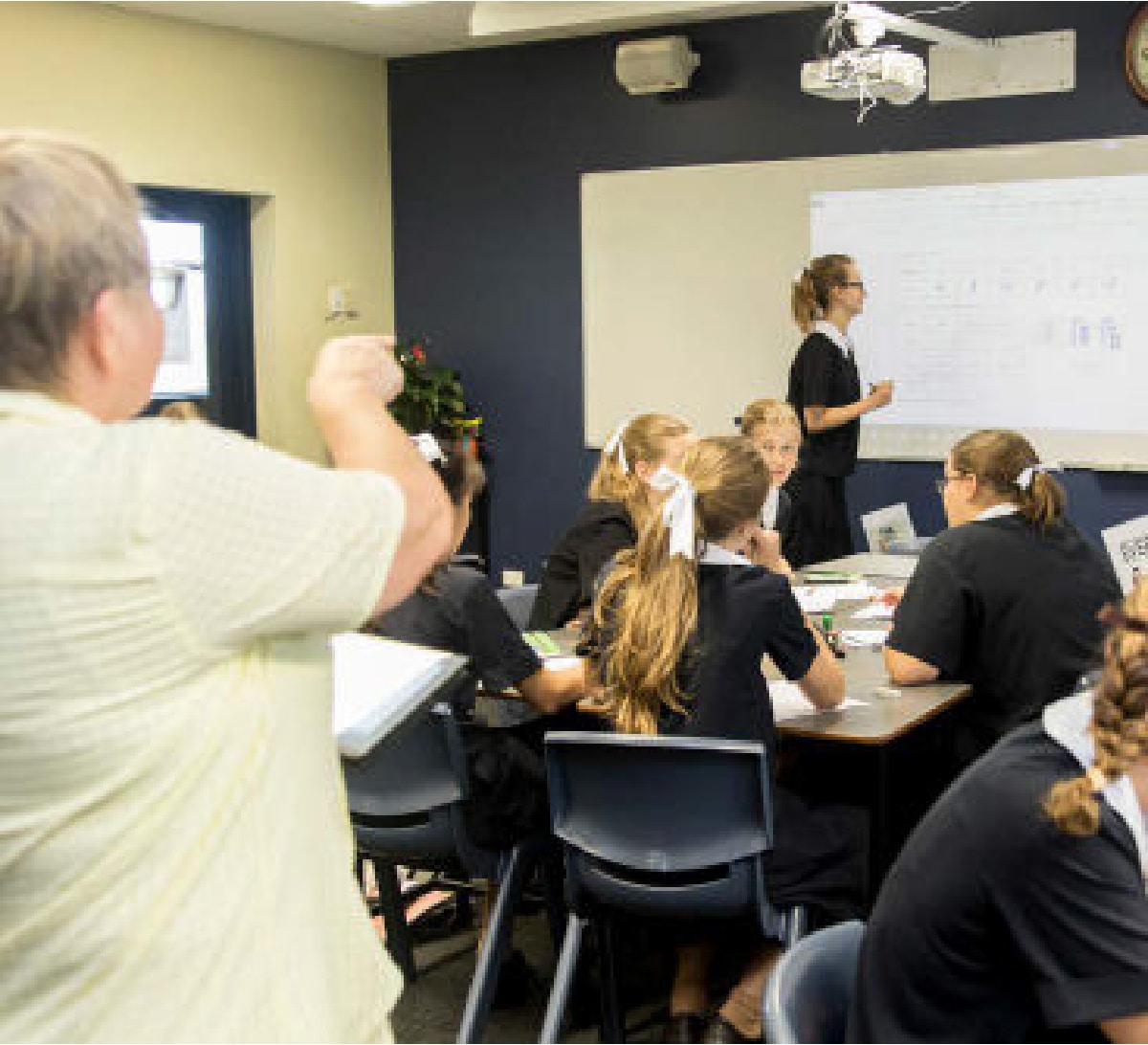
Founded by the Sisters of The Society of the Sacred Advent, both St. Margaret’s Anglican Girls’ School and St. Aidan’s Anglican Girls’ School are situated in the picturesque, leafy suburbs of Ascot and Corinda, Brisbane, Queensland Australia. The schools pride themselves on their excellence in innovative teaching and learning complemented by a broad range of extra-curricular activities.
Request A Trial
Experience a world where technology fades into the background and meaningful, interactive experiences take center stage.
ScreenBeam needs the contact information you provide to us to contact you about our products and services. You may unsubscribe from these communications at any time. For information on how to unsubscribe, as well as our privacy practices and commitment to protecting your privacy, please review our Privacy Policy.
Schedule A Demo
Experience a world where technology fades into the background and meaningful, interactive experiences take center stage.
ScreenBeam needs the contact information you provide to us to contact you about our products and services. You may unsubscribe from these communications at any time. For information on how to unsubscribe, as well as our privacy practices and commitment to protecting your privacy, please review our Privacy Policy.
Related Products
ScreenBeam Administrative Tools Bundle
Designed for Admin, Front Office, and IT teams to support communication, emergency alerting, safety, and device management.
- Messaging Tools – daily, routine communication
- Alert Plus – emergency/safety/security
- 3rd Party EMS Integration Support
- Advanced Digital Signage
Available as a licensed add-on for ScreenBeam 1100 Plus, FLEX, and 1000 EDU Gen 2